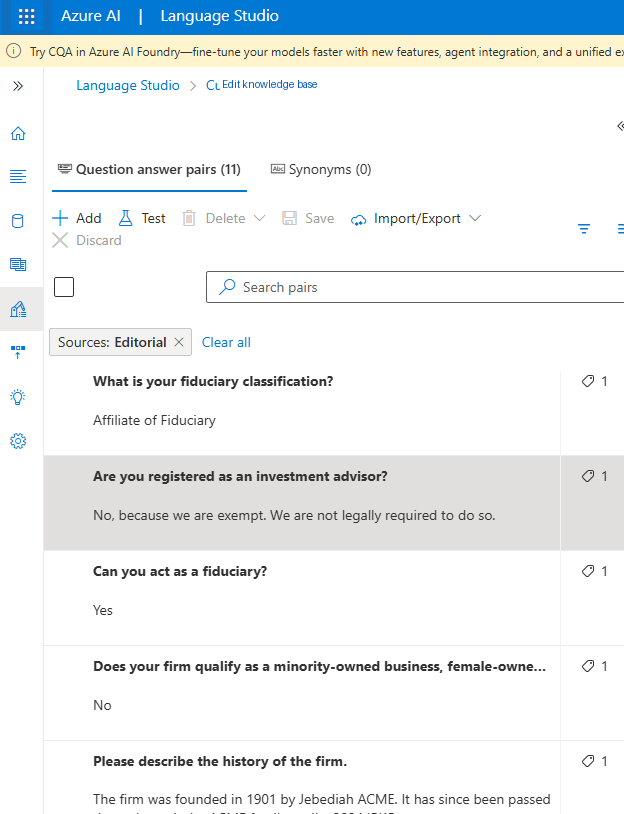
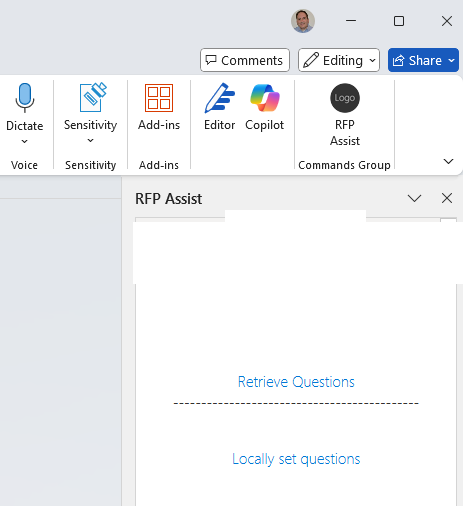
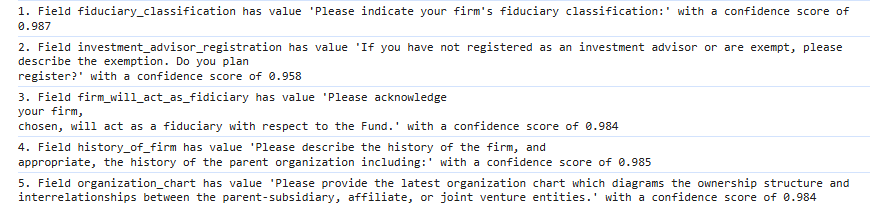
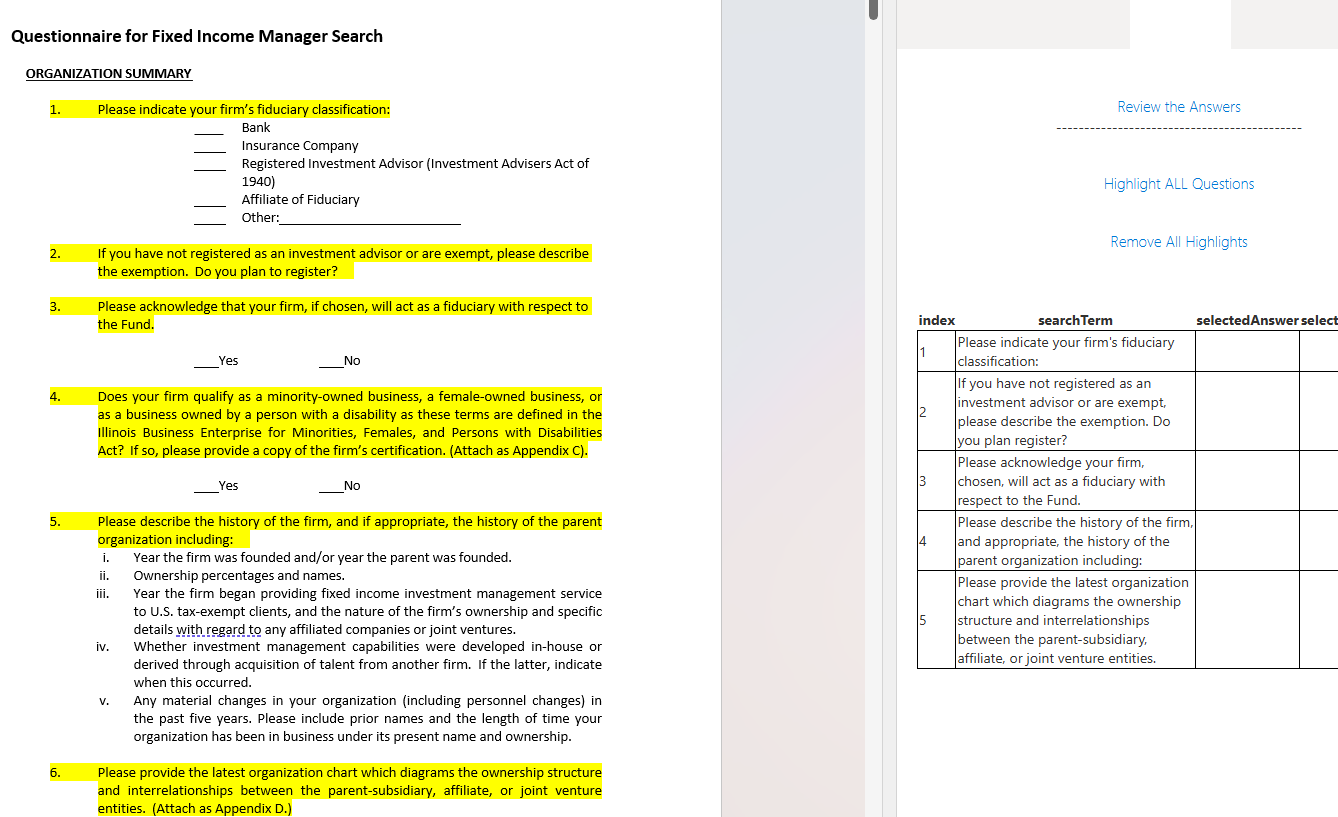
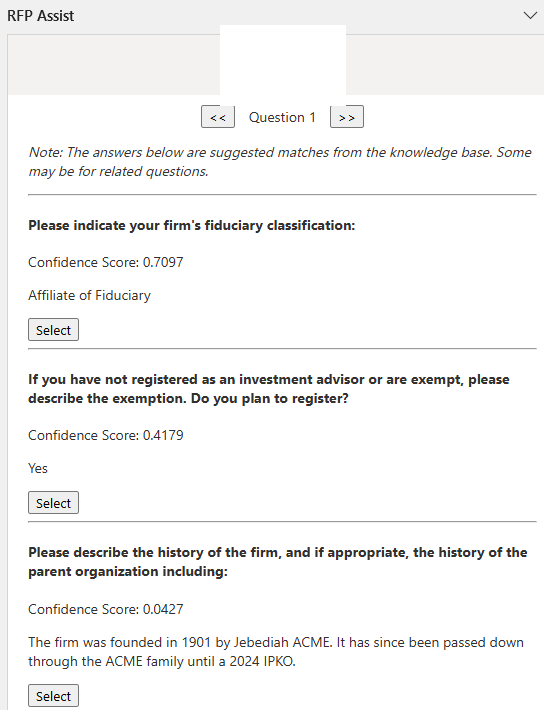
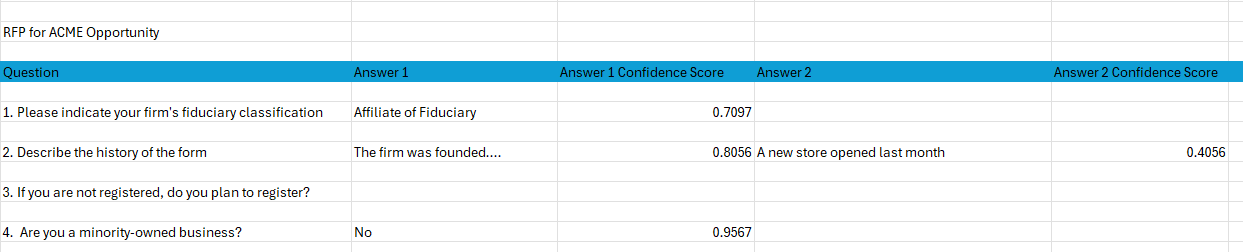
Let’s face it: responding to RFPs can be a nightmare. Finding the right answers usually turns into a scramble that looks something like this: As with so many other things, AI can help, but it isn’t a magic bullet. It won’t write your official question-and-answer pairs for you. What it gives you is a road map to being much more efficient than you were before. To show what that looks like, I built a proof of concept: an “RFP Assist” add-in for Microsoft Word. As you’ll see below, Word doesn’t have to be the platform. The same approach works just as well as a background process. There’s no shortcut here. You have to do this step. Fortunately, there are tools that make it easier. I used Azure AI Language (Language Studio) as the repository for the question-and-answer pairs: For each question, you can also add alternate phrasings of the main question. That gives you more chances of finding the right pair when the wording changes from one RFP to the next. There’s also an import option for bringing in pairs you already keep somewhere else. This is meant to be an iterative process. Plan to review your questions and answers regularly and fine-tune them as you go. Microsoft provides a JavaScript library for building Word add-ins, so I built a small sidebar that opens the RFP Assist tool right inside the document: The add-in uses Azure AI Document Intelligence to scan the document for questions. The user starts the scan by clicking Retrieve Questions: The service scanned the document and returned what it believed were the questions. Under the hood, you can see which questions it matched to our Q&A pairs, along with a confidence score for each match, and the Highlight All Questions button shows every question in the document that has a potential answer: Finding the questions is a giant leap forward, but we can do better. Clicking Review the Answers pulls back the potential answers: The tool found several potential answers, and they really are potential answers. The confidence scores here are fairly low. This is where you’d fine-tune your Q&A pairs to push those scores up. A good practice is to show up to x answers with a confidence score above y. Either way, the goal is to give the user a few good options to choose from. Take question 5 as an example. I like the suggested answer, so I click Select, and the add-in inserts it into the document: (I made the inserted answer blue for readability.) I spent about 90% of my time on this proof of concept getting the Highlight All Questions and Select buttons to work reliably. Why so long? Every RFP is a Word document with its own layout and styling, and anything you do to the document happens inside that RFP’s formatting. For example, if you add an answer under a question that sits in a list, the code has to make sure the answer doesn’t become a new list item just because of how that section is styled. It works, but it’s fragile. That led me to a simpler approach. Instead of making the user open the RFP in Word and work through the questions there, the RFP can be scanned ahead of time by an automated process. Say we moved all of the add-in’s logic into a script that watches a folder. Any RFP waiting for a response gets dropped into that folder. The script then produces a list (a spreadsheet, a table, whatever works) of the questions it found and the possible answers for each one. A spreadsheet for a single RFP might look something like this: A question might have zero, one, two or more potential answers. Whenever the user is ready to work on that RFP, they open the list and copy the answers they want into the document. No fighting with document formatting. Because matching questions to answers is now automated, you also get something the add-in couldn’t easily give you: reporting. You can measure how well your knowledge base covers incoming RFPs and flag the gaps: questions with no answer, answers with poor confidence scores, and questions that keep coming up. AI won’t replace the work of deciding what your official answers are. That part is still on you. But once that foundation exists, AI can take over the tedious parts of RFP responses: finding the questions, matching them to approved answers, and showing you where your knowledge base needs work. The key is to treat it as a living process. The more you review and refine your question-and-answer pairs, the better the matches get, and the faster every RFP after that goes.How to Use AI to Respond to RFPs
Step 1: Build a Repository for Your Question-and-Answer Pairs
Step 2: The Microsoft Word Add-In
Retrieve the Questions
The Answers

Why a Word Add-In Might Not Be the Right Fit Everywhere
An Alternative: Pre-Scan RFPs Automatically
The Takeaway
Using AI to Improve RFP Responses





Related Blogs
