Meet the IT Voice Agent: call it from Teams, get answers from your business systems
In a recent post, I simulated a voice agent in a RAG pipeline that I had previously built. It was a fun little exercise, but that particular use case (having users press a button to talk and then another to indicate that they were done talking) isn’t a real-world scenario. I decided to create a true voice agent – the IT Voice Agent. This agent is an AI assistant that you call from Microsoft Teams or even from a phone. It answers in a natural voice, understands plain conversational requests, and looks up live information in the systems people use every day: Microsoft 365, ServiceNow, Microsoft Fabric, Jira and whatever knowledge base or custom data set they need to access via natural language. For example, it can also talk you through fixing common IT problems before anyone opens a ticket.
What it does
Open Teams, search for IT Voice Agent, and press call. The agent picks up within a couple of seconds and greets you as the IT Help Desk. From there you just talk to it, as you would to a person on a help desk line.
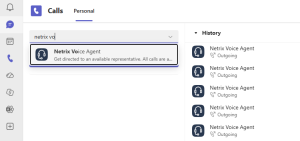
Calling the IT Voice Agent is just a Teams call: search, click, talk
| Ask it about | For example | Where the answer comes from |
|---|---|---|
| IT problems | “My PC is asking for a BitLocker recovery key” · “I keep getting MFA prompts” | Microsoft support articles |
| People | “Is my colleague available right now?” · “Who’s my manager?” | Microsoft 365 (Graph) |
| IT incidents | “What tickets do I have open?” · “I can’t print, open a ticket” | ServiceNow |
| Data | “How many taxi trips are in the data?” · “What’s the average fare?” | Microsoft Fabric warehouse |
| Work items | “Any open Jira issues?” · “Create a task to update the demo slides” | Jira |
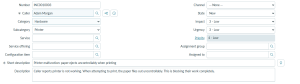
A caller said ‘I can’t print, open a ticket.’ Seconds later, the incident is in ServiceNow.
Fix it first, ticket second
When you describe a problem, the agent first searches Microsoft’s support articles for a fix and walks you through it a step or two at a time, checking that you’re keeping up. If the steps don’t solve it, or the problem isn’t covered, it opens a ServiceNow incident for you, with the article it tried and what you already did in the description, so the help desk doesn’t start from scratch. If you’d rather skip straight to a ticket, just say so.
It feels like a conversation, not a phone menu
- No menus, no keywords. Callers say what they need in their own words. There’s no “press 1 for…”.
- It knows who’s calling. A call from Teams identifies the caller, so “my tickets” and “my manager” just work, and new tickets are logged under your name without the agent asking for your email.
- You can interrupt it. Start talking mid-sentence and it stops and listens, the way a person would.
- It never leaves dead air. When a lookup takes a few seconds, it says “one moment while I check that” so the line doesn’t go silent.
- It speaks answers, not data. It turns raw results into short spoken sentences. “The average fare is about 13 dollars”, not a table of numbers. It reads ticket numbers back one character at a time so they’re easy to note down.
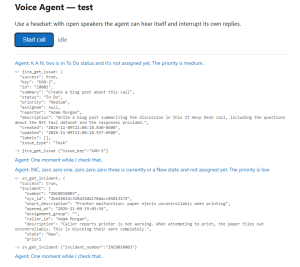
A peek underneath the covers – every spoken answer is backed by a live lookup. Here the agent finds a fix, then opens a ticket when the fix doesn’t work.
It stays in its lane
The agent only uses the actions it has been explicitly given: looking people up, finding support articles, checking and creating tickets, querying data, and managing work items. It can’t send email, delete records or change user accounts, even though the systems behind it can. If you ask something it has no way to look up, it says so plainly instead of guessing.
How it works
- The voice is Azure OpenAI’s realtime speech model. It listens and speaks directly, without separate speech-to-text and text-to-speech steps. That’s what keeps replies quick and lets it handle interruptions naturally.
- The phone connection uses Microsoft’s Teams Phone extensibility. A Teams resource account, the “person” you call, is linked to Azure Communication Services, which streams each call’s audio to the agent.
- The actions come from an MCP (Model Context Protocol) tool server that wraps each business system. The voice agent contains no integration code of its own. To give it a new skill, add a tool to the MCP server and switch it on in the agent’s configuration.
Why this matters
Many routine calls are really lookups or well-known fixes: “Where’s my ticket?”, “Is someone available?”, “How do I get past this BitLocker screen?” The answers already live in systems like ServiceNow, Fabric, Microsoft 365 and Microsoft’s own support library. A voice agent that can reach those systems can handle those calls at any hour, resolve some problems without a ticket at all, and free people up for the conversations that need them.
Because the agent’s skills come from a shared tool server, the same building blocks can serve other scenarios. Reception, appointment scheduling, order and record lookups, and on-call paging all follow the same pattern with different tools. And because it runs on Teams and Azure, it fits the Microsoft environment organizations already have.
Where it can go from here
- A phone number. The agent can be given a regular phone number (I didn’t want to incur the cost for a demo), so anyone can reach it from any phone, not just from Teams. The agent itself doesn’t change.
- More skills. Any system the MCP tool server can reach becomes something the agent can talk about: CRM records, orders, inventory, HR policies, your own knowledge base.
- More scenarios. The same building blocks handle reception, appointment scheduling, record lookups and on-call paging.
- Hand-off to a person. When a call needs a human, the agent can transfer it to the right colleague or queue in Teams.


